Chrome Security
HTTPS by default
One year from now, with the release of Chrome 154 in October 2026, we will change the default settings of Chrome to enable “Always Use Secure Connections”. This means Chrome will ask for the user's permission before the first access to any public site without HTTPS.
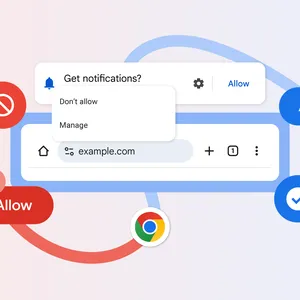
The “Always Use Secure Connections” setting warns users before accessing a site without HTTPS

Chrome Security's mission is to make it safe to click on links. Part of being safe means ensuring that when a user types a URL or clicks on a link, the browser ends up where the user intended. When links don't use HTTPS, an attacker can hijack the navigation and force Chrome users to load arbitrary, attacker-controlled resources, and expose the user to malware, targeted exploitation, or social engineering attacks. Attacks like this are not hypothetical—software to hijack navigations is readily available and attackers have previously used insecure HTTP to compromise user devices in a targeted attack.
Since attackers only need a single insecure navigation, they don't need to worry that many sites have adopted HTTPS—any single HTTP navigation may offer a foothold. What's worse, many plaintext HTTP connections today are entirely invisible to users, as HTTP sites may immediately redirect to HTTPS sites. That gives users no opportunity to see Chrome's "Not Secure" URL bar warnings after the risk has occurred, and no opportunity to keep themselves safe in the first place.
To address this risk, we launched the “Always Use Secure Connections” setting in 2022 as an opt-in option. In this mode, Chrome attempts every connection over HTTPS, and shows a bypassable warning to the user if HTTPS is unavailable. We also previously discussed our intent to move towards HTTPS by default. We now think the time has come to enable “Always Use Secure Connections” for all users by default.
Now is the time.
For more than a decade, Google has published the HTTPS transparency report, which tracks the percentage of navigations in Chrome that use HTTPS. For the first several years of the report, numbers saw an impressive climb, starting at around 30-45% in 2015, and ending up around the 95-99% range around 2020. Since then, progress has largely plateaued.
HTTPS adoption expressed as a percentage of main frame page loads

This rise represents a tremendous improvement to the security of the web, and demonstrates that HTTPS is now mature and widespread. This level of adoption is what makes it possible to consider stronger mitigations against the remaining insecure HTTP.
Balancing user safety with friction
While it may at first seem that 95% HTTPS means that the problem is mostly solved, the truth is that a few percentage points of HTTP navigations is still a lot of navigations. Since HTTP navigations remain a regular occurrence for most Chrome users, a naive approach to warning on all HTTP navigations would be quite disruptive. At the same time, as the plateau demonstrates, doing nothing would allow this risk to persist indefinitely. To balance these risks, we have taken steps to ensure that we can help the web move towards safer defaults, while limiting the potential annoyance warnings will cause to users.
One way we're balancing risks to users is by making sure Chrome does not warn about the same sites excessively. In all variants of the "Always Use Secure Connections" settings, so long as the user regularly visits an insecure site, Chrome will not warn the user about that site repeatedly. This means that rather than warn users about 1 out of 50 navigations, Chrome will only warn users when they visit a new (or not recently visited) site without using HTTPS.
To further address the issue, it's important to understand what sort of traffic is still using HTTP. The largest contributor to insecure HTTP by far, and the largest contributor to variation across platforms, is insecure navigations to private sites. The graph above includes both those to public sites, such as example.com, and navigations to private sites, such as local IP addresses like 192.168.0.1, single-label hostnames, and shortlinks like intranet/. While it is free and easy to get an HTTPS certificate that is trusted by Chrome for a public site, acquiring an HTTPS certificate for a private site unfortunately remains complicated. This is because private names are "non-unique"—private names can refer to different hosts on different networks. There is no single owner of 192.168.0.1 for a certification authority to validate and issue a certificate to.
HTTP navigations to private sites can still be risky, but are typically less dangerous than their public site counterparts because there are fewer ways for an attacker to take advantage of these HTTP navigations. HTTP on private sites can only be abused by an attacker also on your local network, like on your home wifi or in a corporate network.
If you exclude navigations to private sites, then the distribution becomes much tighter across platforms. In particular, Linux jumps from 84% HTTPS to nearly 97% HTTPS when limiting the analysis to public sites only. Windows increases from 95% to 98% HTTPS, and both Android and Mac increase to over 99% HTTPS.
In recognition of the reduced risk HTTP to private sites represents, last year we introduced a variant of “Always Use Secure Connections” for public sites only. For users who frequently access private sites (such as those in enterprise settings, or web developers), excluding warnings on private sites significantly reduces the volume of warnings those users will see. Simultaneously, for users who do not access private sites frequently, this mode introduces only a small reduction in protection. This is the variant we intend to enable for all users next year.
“Always Use Secure Connections,” available at chrome://settings/security

In Chrome 141, we experimented with enabling “Always Use Secure Connections” for public sites by default for a small percentage of users. We wanted to validate our expectations that this setting keeps users safer without burdening them with excessive warnings.
Analyzing the data from the experiment, we confirmed that the number of warnings seen by any users is considerably lower than 3% of navigations—in fact, the median user sees fewer than one warning per week, and the ninety-fifth percentile user sees fewer than three warnings per week..
Understanding HTTP usage
Once “Always Use Secure Connections” is the default and additional sites migrate away from HTTP, we expect the actual warning volume to be even lower than it is now. In parallel to our experiments, we have reached out to a number of companies responsible for the most HTTP navigations, and expect that they will be able to migrate away from HTTP before the change in Chrome 154. For many of these organizations, transitioning to HTTPS isn't disproportionately hard, but simply has not received attention. For example, many of these sites use HTTP only for navigations that immediately redirect to HTTPS sites—an insecure interaction which was previously completely invisible to users.
Another current use case for HTTP is to avoid mixed content blocking when accessing devices on the local network. Private addresses, as discussed above, often do not have trusted HTTPS certificates, due to the difficulties of validating ownership of a non-unique name. This means most local network traffic is over HTTP, and cannot be initiated from an HTTPS page—the HTTP traffic counts as insecure mixed content, and is blocked. One common use case for needing to access the local network is to configure a local network device, e.g. the manufacturer might host a configuration portal at config.example.com, which then sends requests to a local device to configure it.
Previously, these types of pages needed to be hosted without HTTPS to avoid mixed content blocking. However, we recently introduced a local network access permission, which both prevents sites from accessing the user’s local network without consent, but also allows an HTTPS site to bypass mixed content checks for the local network once the permission has been granted. This can unblock migrating these domains to HTTPS.
Changes in Chrome
We will enable the "Always Use Secure Connections" setting in its public-sites variant by default in October 2026, with the release of Chrome 154. Prior to enabling it by default for all users, in Chrome 147, releasing in April 2026, we will enable Always Use Secure Connections in its public-sites variant for the over 1 billion users who have opted-in to Enhanced Safe Browsing protections in Chrome.
While it is our hope and expectation that this transition will be relatively painless for most users, users will still be able to disable the warnings by disabling the "Always Use Secure Connections" setting.
If you are a website developer or IT professional, and you have users who may be impacted by this feature, we very strongly recommend enabling the "Always Use Secure Connections" setting today to help identify sites that you may need to work to migrate. IT professionals may find it useful to read our additional resources to better understand the circumstances where warnings will be shown, how to mitigate them, and how organizations that manage Chrome clients (like enterprises or educational institutions) can ensure that Chrome shows the right warnings to meet those organizations' needs.
Looking Forward
While we believe that warning on insecure public sites represents a significant step forward for the security of the web, there is still more work to be done. In the future, we hope to work to further reduce barriers to adoption of HTTPS, especially for local network sites. This work will hopefully enable even more robust HTTP protections down the road.