[[duration]] minutes
This content is generated by Google AI. Generative AI is experimental
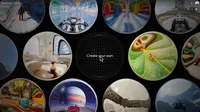
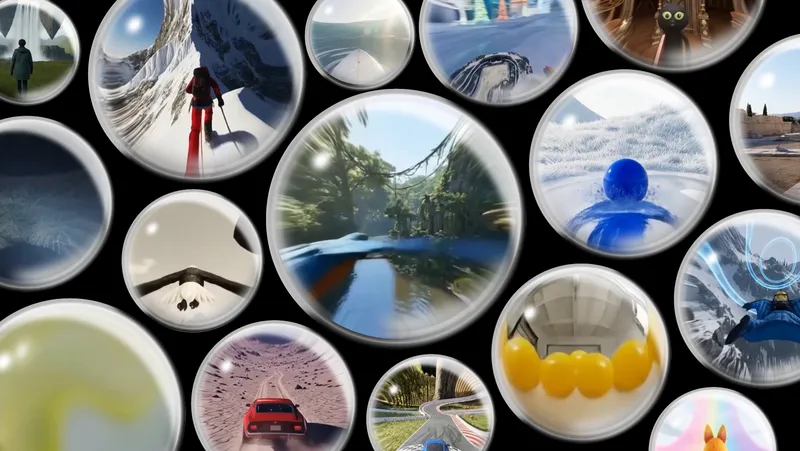
We recently introduced Project Genie, an experimental research prototype that lets you create, explore and remix your own interactive worlds. With Project Genie, you can develop worlds with characters and environments, then navigate them in real time, like by journeying to a new, imaginary planet or diving underwater with sea creatures. Project Genie is currently available to Google AI Ultra Subscribers in the U.S. over 18, with plans to expand further.
You can prompt Project Genie with just text, or with text and images. If you’re ready to bring your imaginary world to life, here are some tips on how to prompt Project Genie as well as features to try.
Start by writing out what kind of environment you want — for example, you could choose a forest, a city, the moon…you get the idea. Be specific with the details: Is the forest lush or wintry? The city could be bustling or empty. Maybe the moon is made of cheese! Also add any structures or objects you want, and weather details, like wind or snow. And think about what you want the world to feel like; sure, it could be photo-realistic and look like what you see around you, or it could look like a cartoon or video game.
Your character is what allows you to navigate the world, and it can be anything, from a tiny blue giraffe to a giant pixelated doll. You can add details like how it moves (maybe it flies, rolls on wheels or runs backwards) and what kind of effect it has — maybe every time it hops forward, a puff of smoke follows behind it.
Instead of starting with just text to create an environment, you also have the option to start with your own images. Upload your image and add any other environment-defining details (like whether you want things to look dark and stormy or like they’re made of a slimy substance). Be sure to use an image where your character is centered in the frame and there's enough background visible to define the environment.
Short, declarative statements work best when you’re prompting Project Genie. For example, the text prompt could be “an underwater scene with lots of coral,” and your character could be a goldfish. Need help crafting these kinds of prompts? You can always use the Gemini app for assistance in rewriting or adjusting them. Project Genie will also show you a preview of your world and character using Nano Banana Pro so you can see what they’ll look like and how navigation will appear. If you want to adjust, you can modify your prompt and fine-tune things in real time before you start actually exploring.
Once you’ve created an environment and a character, you can decide how to explore it all. You can navigate through the eyes of the character (the first-person view) or by watching the character from above (third-person view). Just select the perspective button to choose which viewpoint you want as you take a tour through your world.