[[duration]] minutes
This content is generated by Google AI. Generative AI is experimental

Today, we’re introducing significant updates to how you ingest data into the Gemini API: support for Google Cloud Storage (GCS) object registration, HTTPS/Signed URLs and increased inline file size limits. These changes are designed to help you bring your own data — wherever it lives — directly into Gemini API. There’s no longer a need to re-upload data from existing storage, allowing you to scale your AI applications to production faster.
Previously, using large files (video, long audio, massive documents) required uploading them to the Gemini Files API, where they persisted for only 48 hours. While sufficient for prototyping, this ephemeral storage became a bottleneck for production apps relying on persistent data in cloud storage platforms.
We are removing this friction with two new input methods.
1. External URLs (public / signed):
We now support both files stored in public domains, as well as private storage (via signed URLs)
The Gemini API securely fetches the content during processing, eliminating the need to download content to your backend just to forward it to the API.
2. Register GCS files: If your data is already in Google Cloud Storage (GCS), you no longer need to move bytes. You can now register your GCS files directly with the Files API.
For developers who prefer using inline files for speed and simplicity, we are increasing the maximum payload size for inline data from 20MB to 100MB (base64 encoded, with varying limits based on data types). This is ideal for prototyping, real-time applications, and handling larger images or short audio clips without needing any intermediate storage.
With these updates, you now have a robust toolkit for data ingestion tailored to your specific needs:
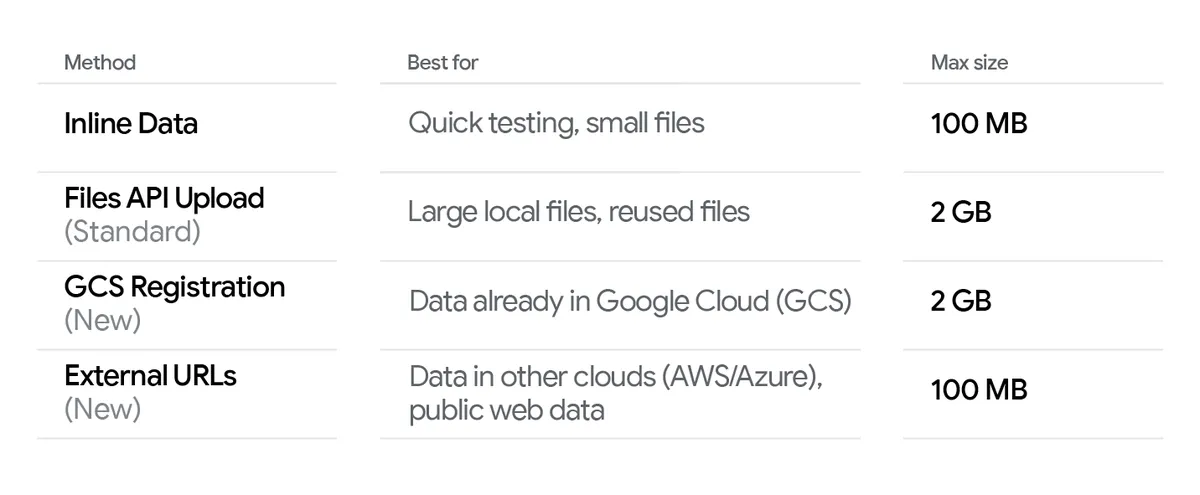
Here’s how you can start using these new methods with the latest GenAI SDKs.
This method allows you to fetch content directly from your existing storage buckets.
from google import genai
from google.genai import types
import boto3

# Generate a signed S3 object URL.
s3 = boto3.client('s3')
signed_url = s3.generate_presigned_url(
    'get_object',
    Params={'Bucket': 'my-bucket-name', 'Key': 'document.pdf'},
    ExpiresIn=3600
)

# Use it in the Gemini API.
client = genai.Client()

response = client.models.generate_content(
    model="gemini-3-flash-preview",
    contents=[
        types.Part.from_uri(
            # Use a public HTTPS URL
            file_uri="https://example.com/secure/image.pdf",
        ),
        types.Part.from_uri(
            # Use a signed private URL
            file_uri=signed_url,
        ),
        "What are these documents about?"
    ],
)
print(response.text)For data already sitting in your GCS buckets, you can register the URIs once and use them across multiple requests without moving the actual bytes.
Note: This requires authenticating with OAuth credentials as an IAM user or service with read access to the storage bucket. See our documentation for the setup guide.
import google.auth
from google import genai

# Authenticate as a service with storage permissions.
gcs_creds, _ = google.auth.default(scopes=[
  'https://www.googleapis.com/auth/cloud-platform',
  'https://www.googleapis.com/auth/devstorage.read_only'
])
client = genai.Client()

# Register files directly from GCS without re-uploading.
registered_gcs_files = client.files.register_files(
    uris=[
        "gs://my_bucket/video1.mp4",
        "gs://my_bucket/document.pdf"
    ],
    auth=gcs_creds
)
print(f"Files registered successfully: {registered_gcs_files}")

response = client.models.generate_content(
    model="gemini-3-flash-preview",
    contents=
        ["What are these documents about?"] +
        registered_gcs_files.files
)
print(response.text)These new file input methods are available today in the latest versions of our SDKs. We’re excited to see how removing these data barriers helps you build faster and scale your multimodal applications with less overhead.
For complete details on authentication, supported file types, and best practices, check out the updated file documentation. To try out the new file URLs, explore the demo applet.