10 ways you can ask Google Photos to edit your photos for you
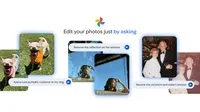
It’s easier than ever to edit your images in Google Photos — all you have to do is ask. Eligible Android users in the U.S. can now simply describe the changes they want and let Photos take care of the rest. Just open an image, tap “Help me edit” in the editor, and tell it what to do either by typing or talking.
Curious about what you can do? Here are 10 examples to inspire your own edits in Photos, along with the prompts to get you there.
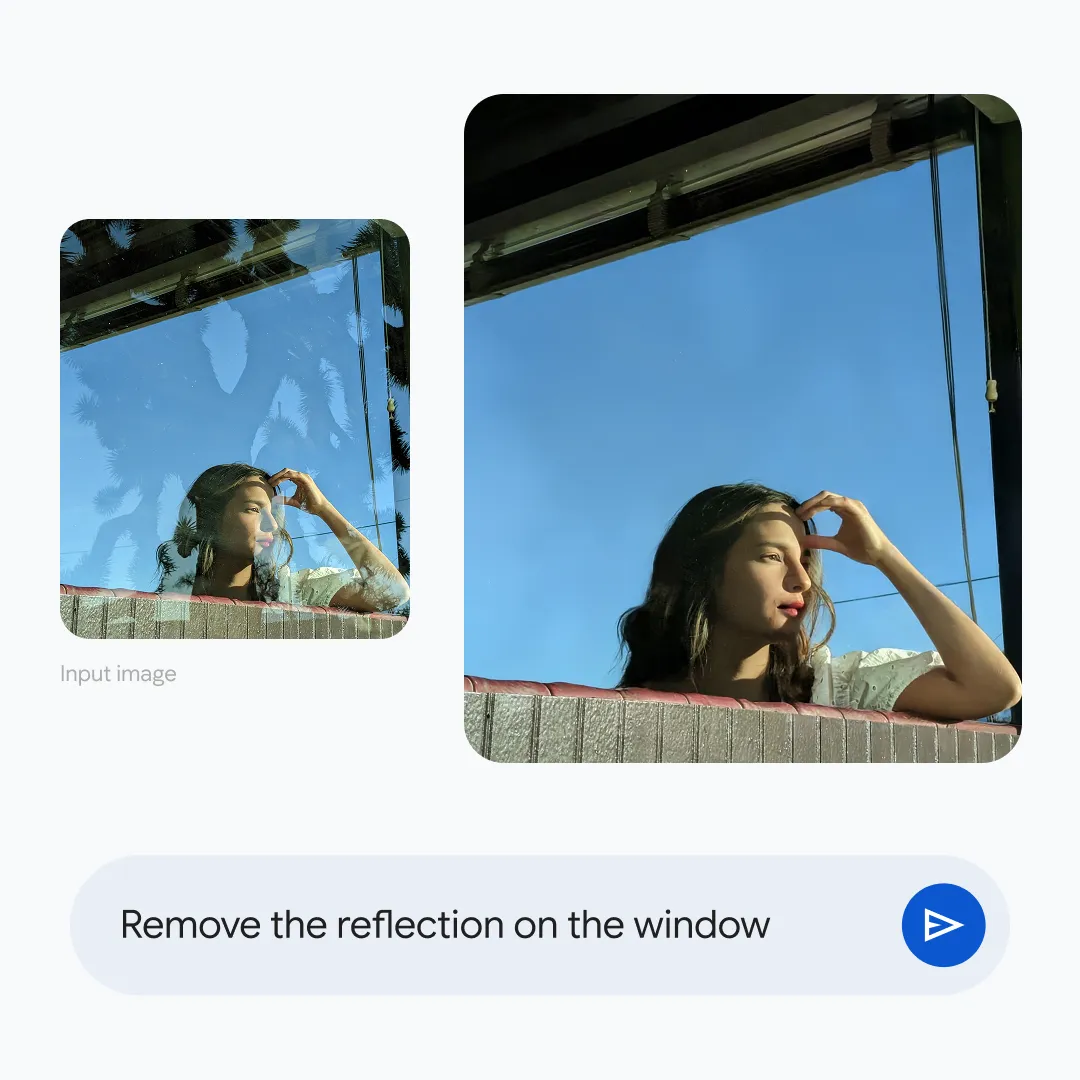
1. Don't let a window's reflection ruin your shot — easily remove distractions for a perfectly clear photo.
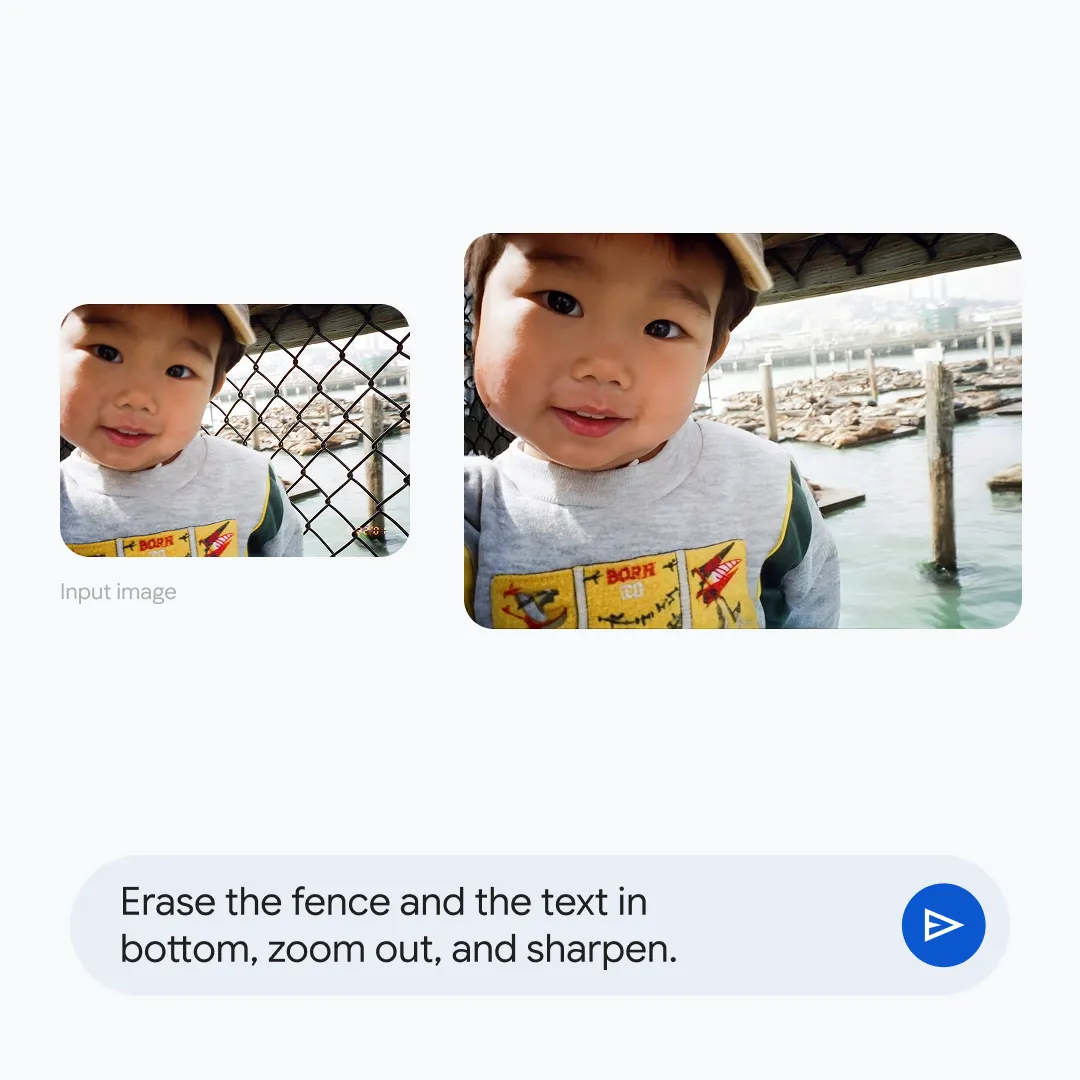
2. Say goodbye to background noise and hello to memories that stand out. Instantly remove unwanted elements like fences, erase old timestamps and sharpen your photos, all in one go.
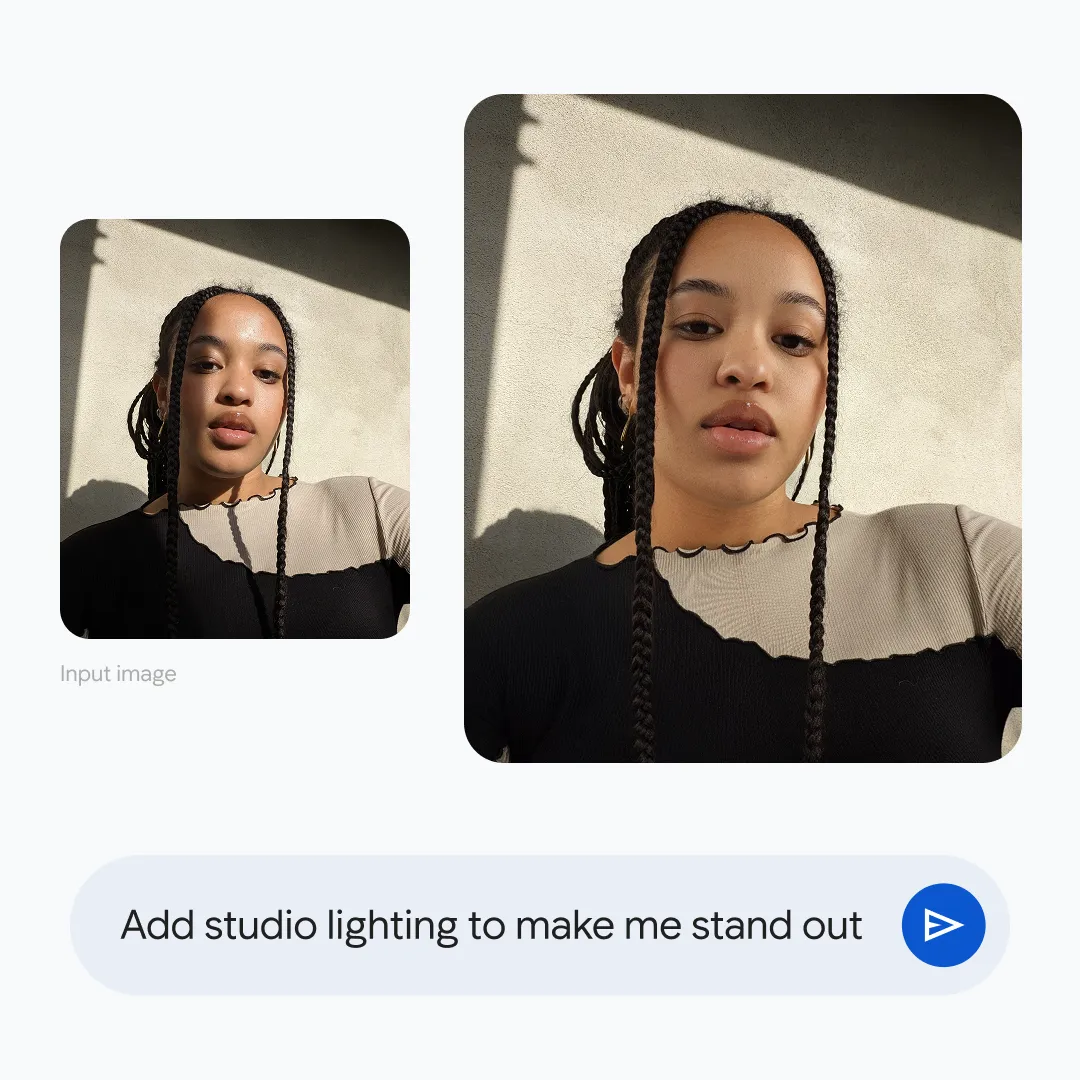
3. Your selfies, but with better lighting. Make yourself stand out by adding studio lighting for a more polished look.
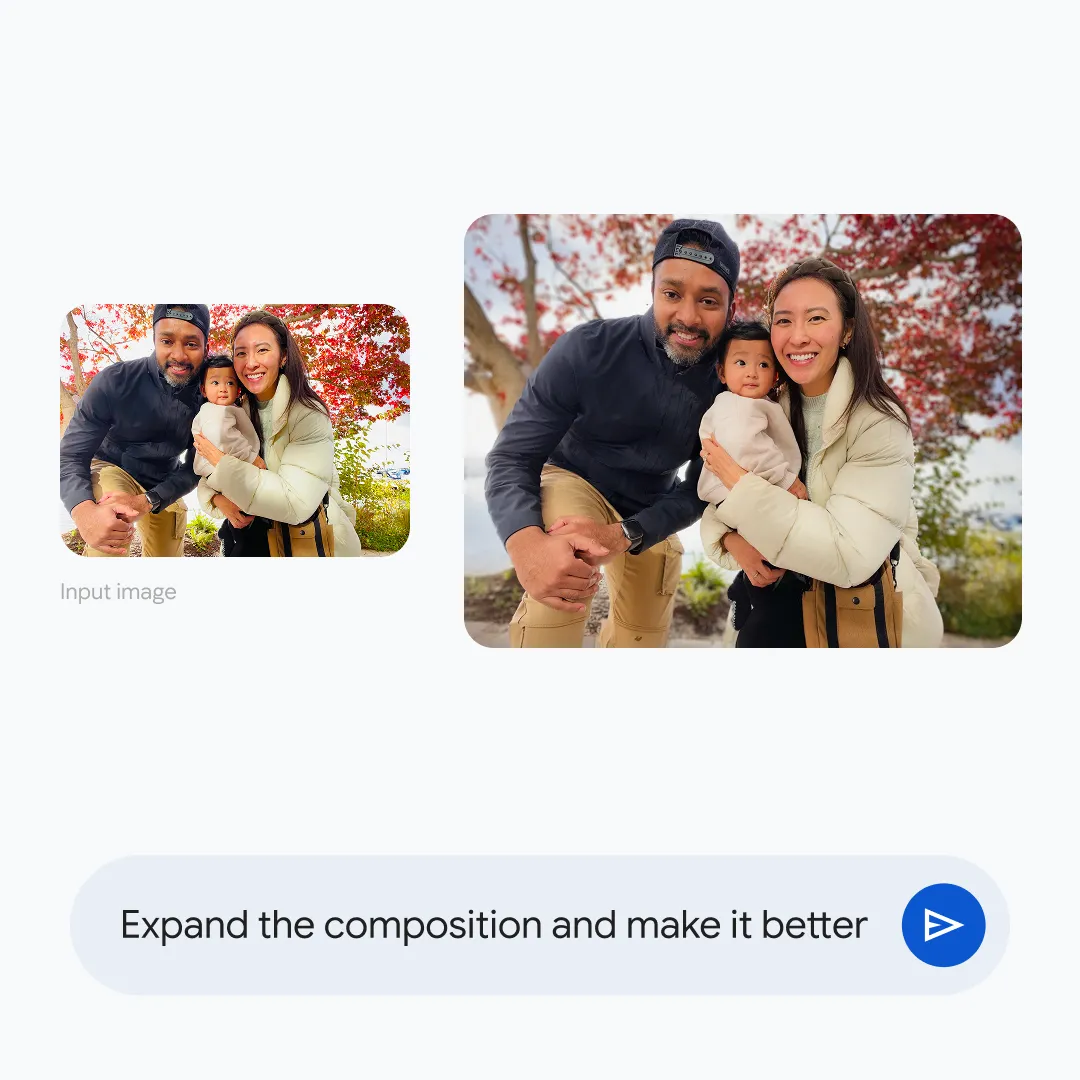
4. Sometimes you get a great photo, but the framing is just a little too tight. Just ask Photos to expand the composition to improve the final image.
5. It can be hard to get a mental image of what a space will look like with new decor. Photos can help you envision changes to your room by adding furniture, lighting and more so you can preview a potential interior update.

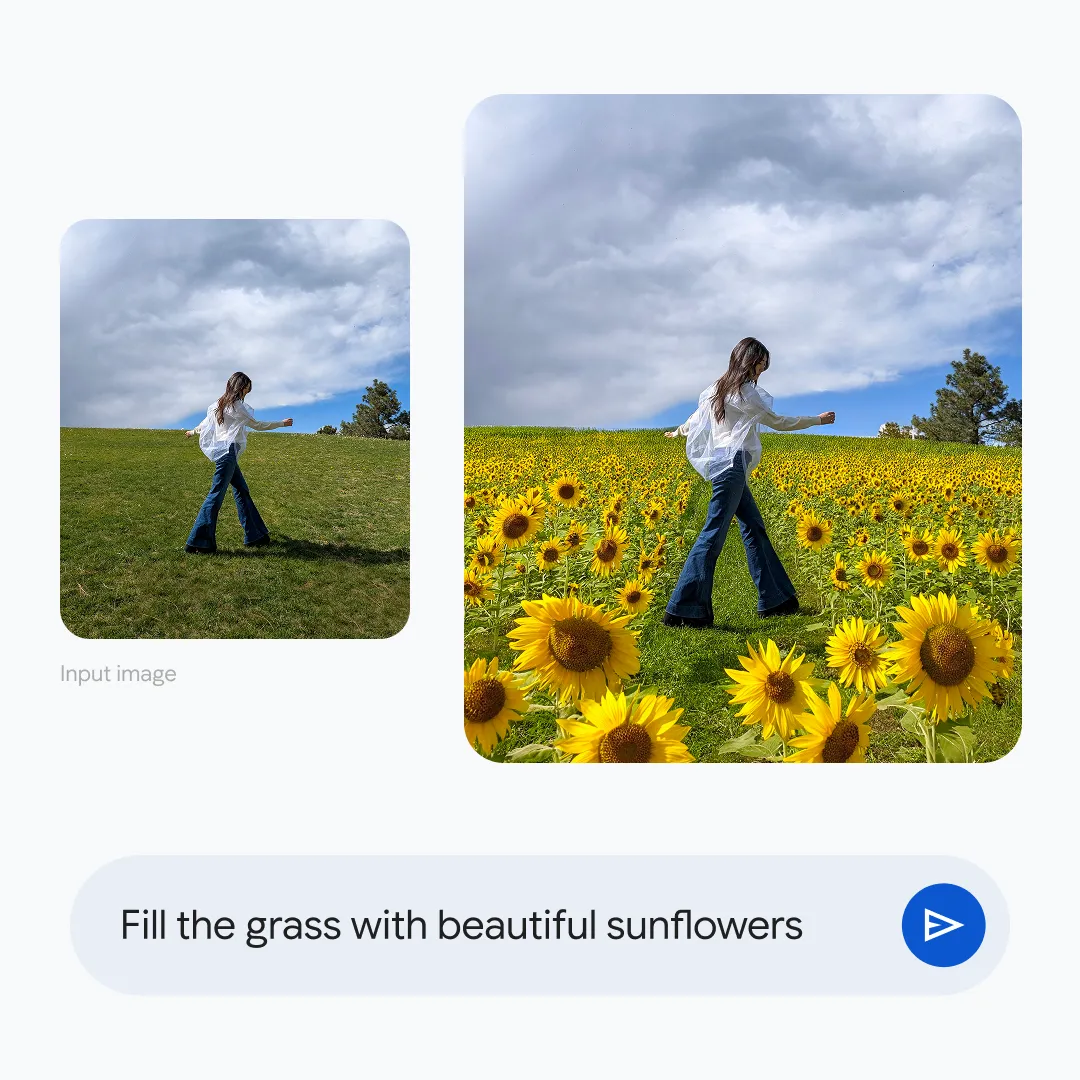
6. Want to turn an average scene from ordinary to extraordinary? Try adding fun elements to your photos, like turning a grassy hill into a vibrant field of sunflowers.
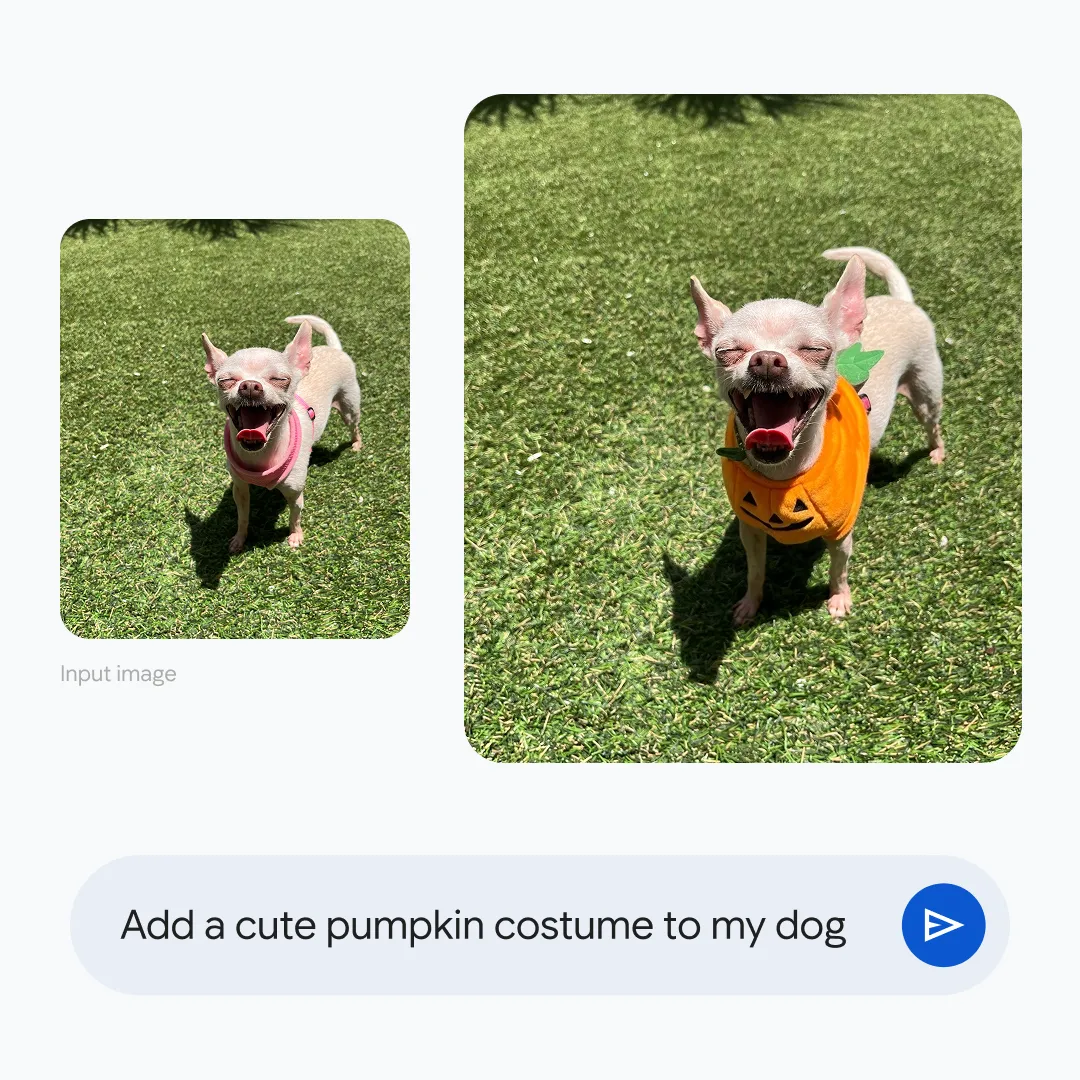
7. Getting a festive pic of your pet in a holiday outfit has never been easier. Just ask Photos to add a costume and — poof — you’ve got a pumpkin pooch to show off to your family and friends.
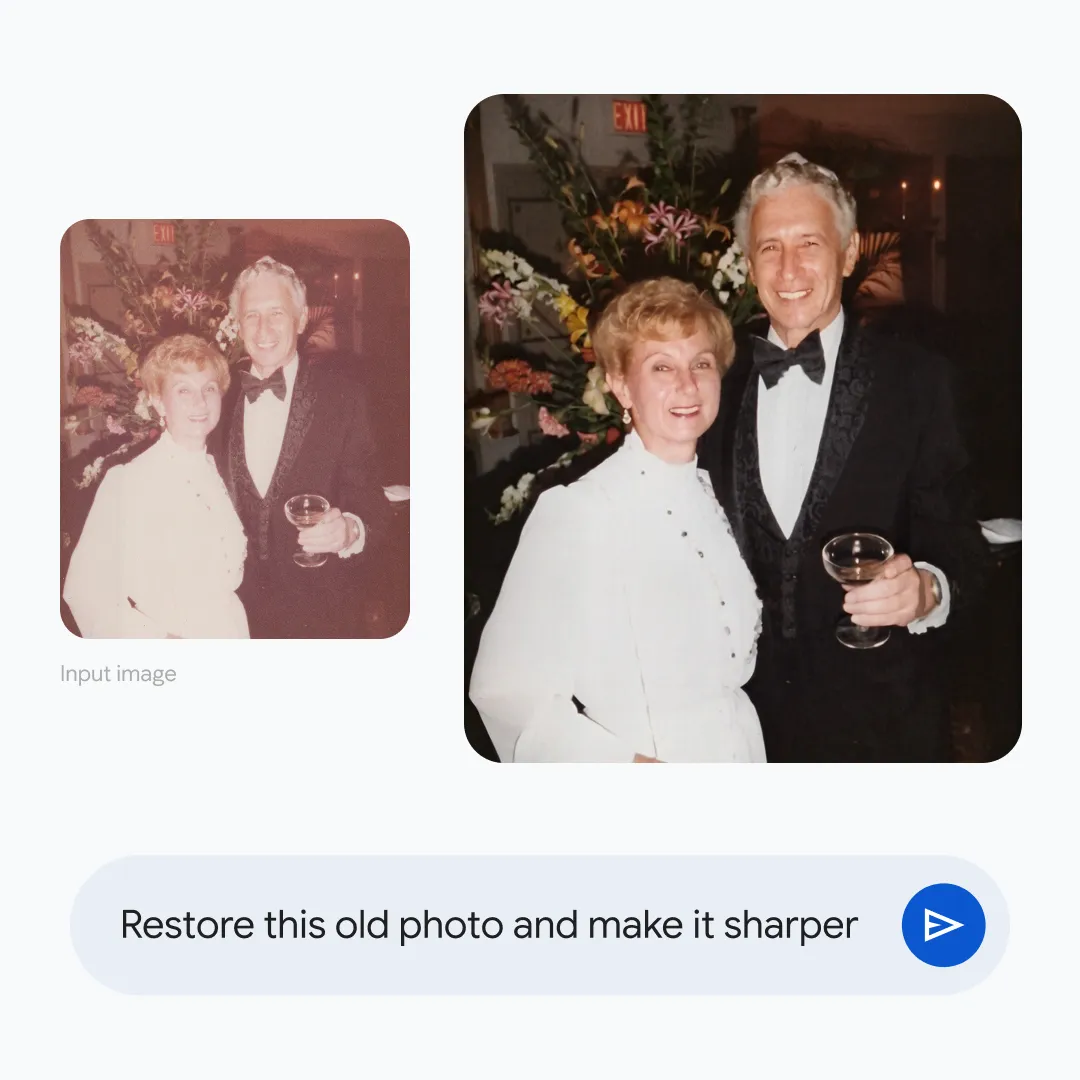
8. We’ve all got cherished memories from years (or decades) ago that look a bit faded. Give those photos new life just by using a simple prompt to restore them.
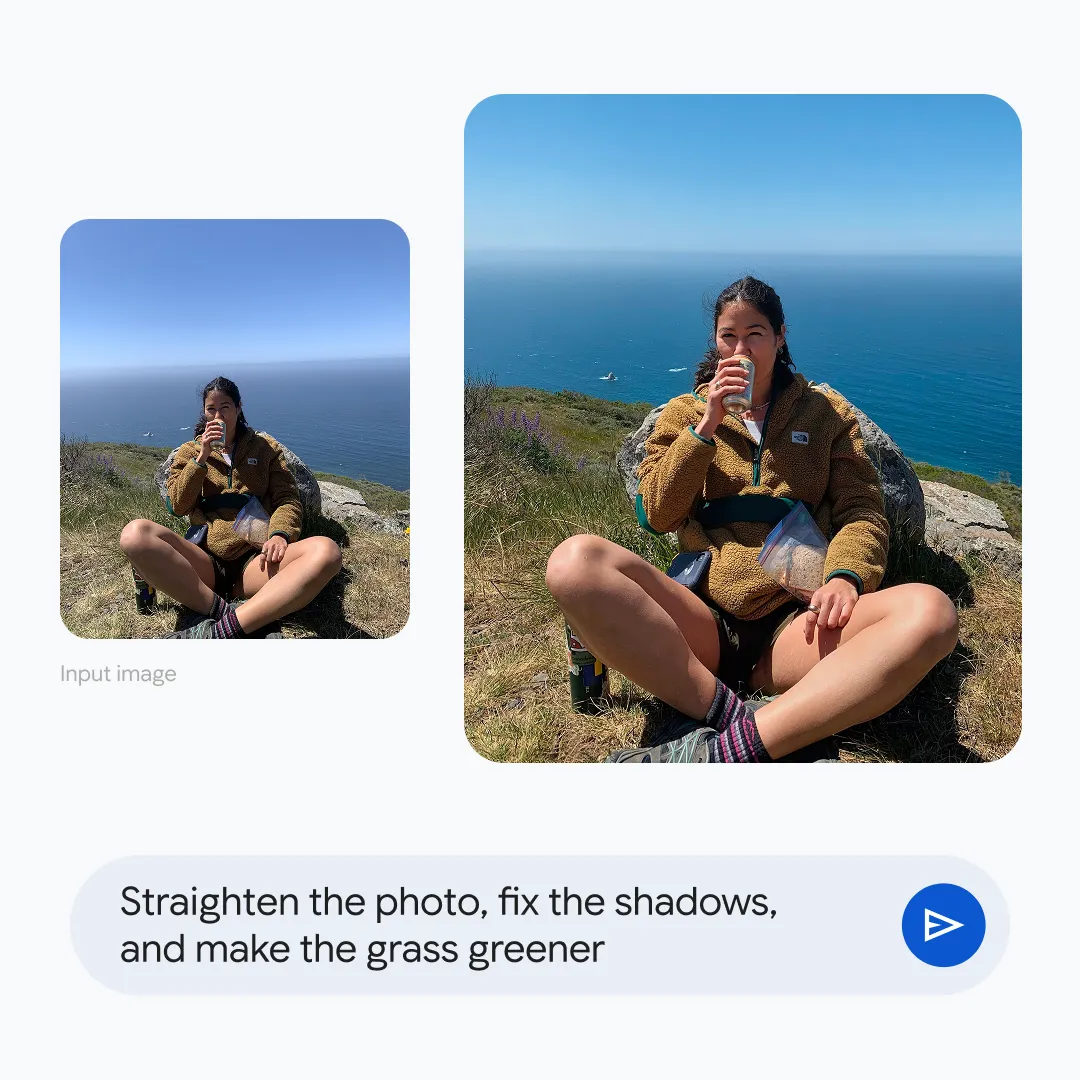
9. Sometimes there’s more than one thing that needs to be improved in a photo. No need to play with multiple sliders and buttons, just put all your changes in one prompt and let Photos do the work.
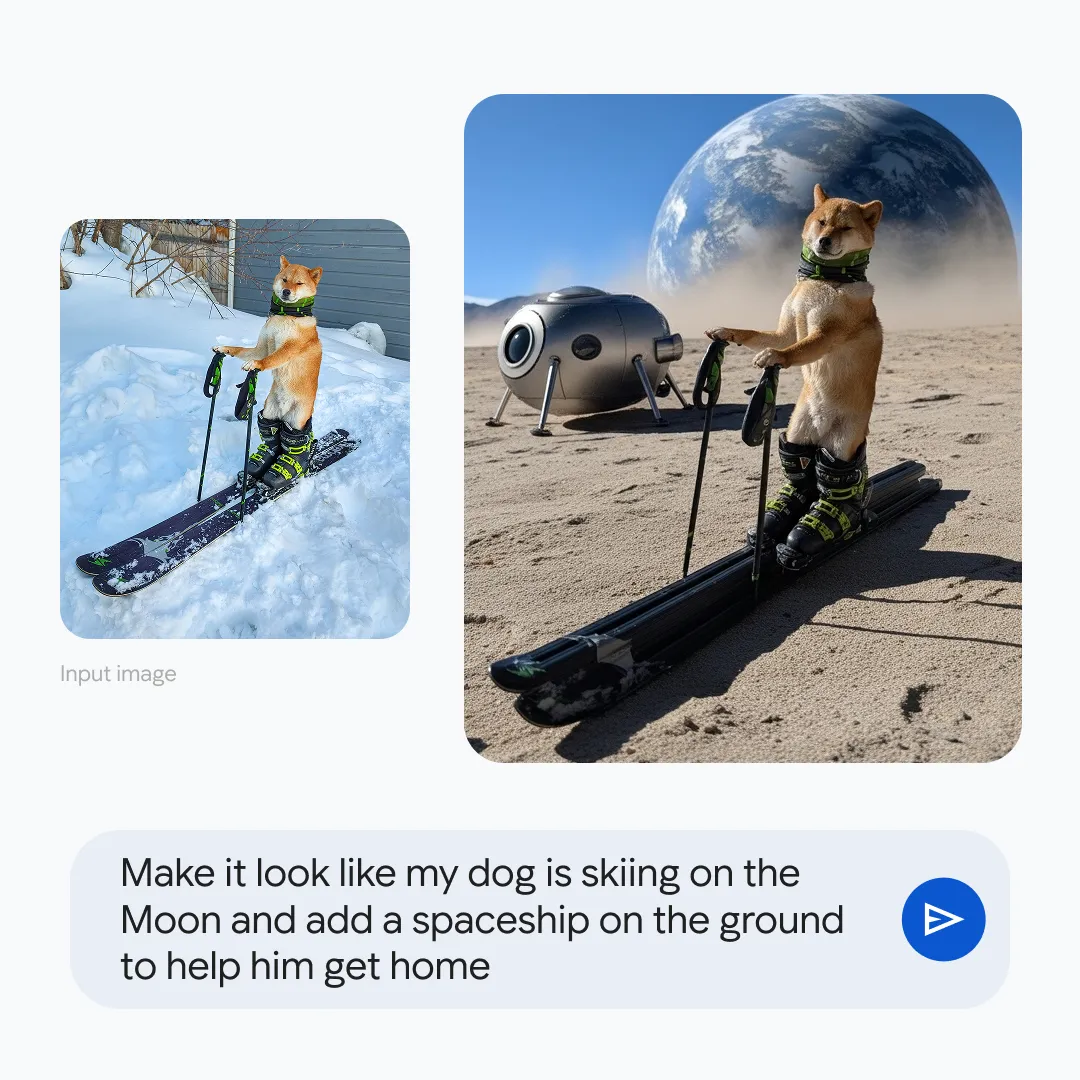
10. What’s better than a skiing dog in the snow? How about a skiing dog on the moon with a spaceship and Earth in the background? Now you can easily ask Photos to make out-of-this-world edits without needing out-of-this-world skills.
Using this new conversational editing experience in Google Photos is just one of the many ways to get creative with your images. If you need some inspiration on the best ways to edit your photos, you can also visit the new Create tab in the Photos app to explore more tools to help bring your photos to life.