40 of our most helpful AI tips from 2025

General summary
In 2025 Google reached AI milestones and shared tips on using new products and features. You can use Gemini 3 to break down topics with visualizations and get homework help with Guided Learning. Also, explore features in Search, Google Photos, Pixel Watch 4, and more.
Summaries were generated by Google AI. Generative AI is experimental.Bullet points
- "40 of our most helpful AI tips from 2025" shares Google's AI milestones and product tips.
- Gemini 3 helps break down complex topics with visuals and interactive simulations in Search.
- NotebookLM offers "Fast" or "Deep Research" options and can create flashcards and quizzes.
- Gemini helps with homework, travel planning, image editing, and even driving directions.
- New features include AI-powered gestures, automations, shopping, and translation tools.
Explore other styles:

This year was full of AI milestones at Google: multiple Gemini models, new Search capabilities, photo and video creation tools, research and learning apps and so much more. That means we also shared plenty of tips on how to use all of these products and features. Here are our favorite AI tips from 2025:
Dive deeper into what interests you.
- Break down technical or scientific topics with visualizations. Gemini 3 is our newest and most intelligent model, and you can access it in the Gemini app, AI Mode in Search, AI Studio and more. It’s great at breaking down complicated topics: It can take any kind of input you give it — from text to video to code and beyond — and help you learn in ways that make sense for you, like with an interactive guide based on a dense research paper.
2. Get interactive simulations and more in Search with Gemini 3. If you're researching something like mortgage loans, Gemini 3 in AI Mode can make you a custom-built interactive loan calculator, creating bespoke generative user interfaces directly in the response so you can compare two different options and see which offers the most long-term savings. This is made possible by Gemini 3’s unparalleled multimodal understanding and powerful agentic coding capabilities.
3. Choose your research style with NotebookLM. You have options when you’re working in NotebookLM: Choose the “Fast Research” option when you need a quick search. It rapidly scans for information, letting you immediately review and import sources. Choose “Deep Research” when you need a full briefing. It performs an in-depth analysis to find high-quality sources. This runs in the background so you can continue your work.

4. Get homework help with Guided Learning. Guided Learning in the Gemini app is an interactive study partner that helps you build a deeper understanding of any topic. It can generate study guides from uploaded course material, walk you through debugging problematic code or simply explain something, like how gravity works on the moon, with helpful videos and images. It can even do your homework with you (but not for you!).
5. Test your knowledge. NotebookLM can make flashcards and quizzes based on your sources for even more help learning any topic.
6. Understand complex topics while you’re browsing. Simplify is a Google app feature for iOS that uses AI to make dense text on the web easier to understand — without leaving a web page. To use it, select any complex text on a webpage you’re visiting in the Google app. Tap the “Simplify” icon that appears, and you’ll see a new, simpler version of the text.
Explore the world easily.
7. Get help from Gemini while you’re behind the wheel. You can get help with multi-step questions and tasks, like: “Is there a budget-friendly restaurant with vegan options along my route, something within a couple miles? … What's parking like there?” Followed by, “OK, let’s go there.” You can even ask “Oh, by the way, can you also add a calendar event for soccer practice tomorrow for 5 p.m.?” You can ask for something more specific, like “What dishes are popular there?” or even catch up on last night's game or news, all without taking your hands off the wheel.
8. Find a great deal for your next vacation. Instead of playing with different dates, destinations and filters to uncover the best deals, use Flight Deals to describe when, where and how you’d like to travel — as though you’re talking to a friend — and Flight Deals will take care of the rest. Search for something like “I want to take a week off in February. Looking for a deal, I want to fly nonstop to a city with great food and warm weather.” You’ll see the best bargains available that match your search, including destinations you may not have previously considered.
9. Build travel plans with Canvas in AI Mode. Canvas is a tool in AI Mode that gives you a space to organize plans and projects over time. And now, you can use Canvas to build travel plans that are customized for your specific needs. Head to AI Mode in Search and describe what type of trip you’re planning and the recommendations you’re looking for, then select the option to “Create Canvas.” Just make sure you’re enrolled in the AI Mode Labs experiment for cutting-edge features.
10. Save screenshots of places to make Google Maps lists. If you ever have trouble keeping track of all of the screenshots you take of travel blogs, news articles or social media posts when you’re researching places to go for an upcoming trip, you’ll want to try out this Google Maps feature. It uses Gemini capabilities to find names of places in your screenshots and helps save them to a list for you, making travel planning a breeze.
11. Get instant info with AI Mode in Circle to Search. Explore complex topics and dig into your initial searches with follow-up questions — all without switching apps. Simply long press the home button or navigation bar, then circle, tap or gesture on what you want to search. When our systems determine an AI response to be most helpful, an AI Overview will appear in your results. From there, you can ask follow up questions in AI Mode by using the bottom search bar and explore content across the web that’s relevant to your search.
Tap into your creative side.
12. Edit images in Google Photos just by asking. You can use natural language to describe the edits you want like “erase the fence” or “restore this old photo.” You can even ask for personalized fixes like removing sunglasses and hats, fixing a smile and more.

13. Get creative with your photos using AI: Want to quickly transform your photos into shareable creations? Head to the Create tab to try AI templates, Remix, Photo to video and more right in Google Photos.
14. Edit images with Nano Banana in Search. Just open Lens in the Google app for Android and iOS, and tap the new Create mode (look for the yellow banana!). Try a suggested prompt or snap a picture and describe the edits you’re looking for.
15. Experiment with vibe coding. Try this Googler’s tips — like what AI tools to use and how to refine prompts.
16. Prompt like a pro to generate and edit images with Gemini. You can get great results with Gemini from simple one or two-sentence inputs. But for truly incredible images and more nuanced creative control, check out our guide on how to get the absolute most out of its capabilities.
17. Find your style with a selfie. If you want to use our virtual try on tool but don’t have a full body photo, you can now simply upload a selfie and Nano Banana will generate a full body digital version for you.
18. Give your photos some life and animate them. Gemini’s photo-to-video capabilities can take a static image and animate it for you — even adding audio!
19. Recap your 2025 with Google Photos. Don’t forget to look back on this year! Google Photos Recap turns your photos and videos from the past year into a highlight reel you can enjoy and share — plus this year, it has new tools so you can customize it.
20. Create an illustrated storybook with Gemini. Simply describe any story you can imagine, and Gemini generates a unique 10-page book with custom art and audio.
21. Master movie-making with Flow. Try our tips for animating anything with Flow, our AI filmmaking tool that uses our AI video generation model, Veo.
22. Give meta prompting a try. Work with Gemini on your prompts for creative tools like Veo to refine your instructions and see where it can take you.
23. Turn photos into a recipe book. Simply snap a few pictures of your holiday baking and have NotebookLM convert it into a delightful recipe book. You can just use Gemini’s world understanding to describe the recipes, or upload your notes and NotebookLM will take care of the rest.
Tackle your to-dos.
24. Use one-handed gestures — Double pinch or Wrist turn — to control your Pixel Watch 4. Scroll through notifications, dismiss notifications, snooze your alarm effortlessly, manage timers and more without ever touching your screen.
25. Ask agentic AI in Search to call local businesses for you. Our new agentic AI feature can just ask you a few questions and then dial local businesses to ask if items are in stock, if there are any discounts available and more.
26. Access Gemini hands-free on your Pixel Watch 4 with Raise to Talk. All you need to do once the feature is enabled is bring your watch a few inches from your mouth, and start chatting. You don’t even need to say “Hey Google” — you’ll still see a blue light subtly flash at the bottom of your watch’s display so you know Gemini is listening.
27. Ask Pixel 10 to take a message for you. Take a Message on the latest Pixel 10 phones is a smarter way to deal with missed or declined calls. It uses spam detection models to see if a call is spam and then will also create a real-time transcript for you, as well as an AI-generated list of next steps.

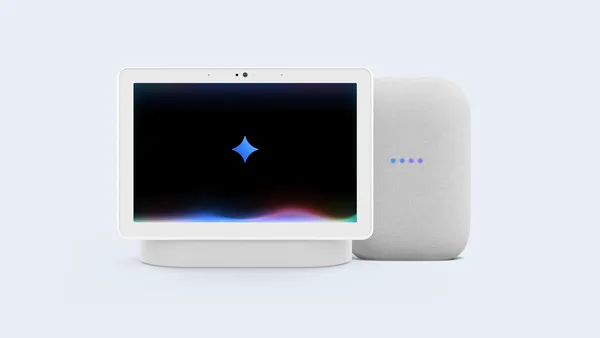
28. Create Google Home automations more easily. With Ask Home, you can make automations using natural language thanks to the new Gemini for Home 1 — for example, simply say, “Create an automation to turn on the porch lights and lock the front door every day at sunset,” and it’s done.
29. Schedule tasks with Gemini. With scheduled actions, you can streamline routine tasks or receive personalized updates directly from Gemini. In your conversation, ask Gemini to perform a task at a specific time, or transform a prompt you're already using into a recurring action.
30. Troubleshoot with Gemini Live in real time. Have a squeaky chair? A glitching record player? With Gemini Live’s camera input, you can show Gemini what you’re seeing in real time and get quick input. Just point your camera at the issue and chat with Gemini to figure out a plan.
31. Use Gemini in Chrome to tackle your tab problem. Gemini in Chrome can now work across multiple tabs, so you can quickly compare and summarize information across multiple websites to find what you need. Planning your flight, hotel and vacation activities across multiple tabs? Gemini in Chrome can help you consolidate that information into a single itinerary to take the stress out of your travel plans.
32. Create and share custom Gems. Gems help you tailor Gemini to your specific needs, making tasks simpler and saving you time on repetitive prompting. Maybe you’ve made one for a workflow or a family vacation: To share, open your Gem manager on the web and click “Share” next to any Gem you’ve created, turning your favorite Gems into a shared resource so you can prompt less and create more.
33. Turn on Pixel’s Magic Cue to get relevant info when you need it. Magic Cue uses Gemini models to proactively surface relevant information and suggest helpful actions across different apps. That means it can find reservation details in your Gmail, reference events to your Calendar and preview the forecast for upcoming trips in the Weather app.
34. Shop conversationally and explore visually with AI Mode in Search. Rather than setting filters and sifting through items to find something that’s just right, you can say something like “barrel jeans that aren’t too baggy,” and AI Mode will intelligently provide a relevant set of shoppable options to help you get inspired. If you want to refine your options further, just search what you’re thinking, like “I want more ankle length.”
35. Translate as you scroll with Circle to Search. This year we updated translation capabilities in Circle to Search so that the experience is continuous: Simply long-press the home button or navigation bar to start Circle to Search, tap the “Translate” icon and press “scroll and translate.” As you scroll down the page, or even switch apps, the text will continue to translate, so there’s no interruption.
Go pro at work.
36. Create beautiful slide presentations with Nano Banana Pro in Mixboard. Mixboard is an AI experiment from Google Labs designed to help you explore, expand and refine ideas. It now uses Nano Banana Pro — the newest version of our viral image generation model — to transform the content from a board into a compelling presentation.

37. Turn your notes and documents into narrated videos. NotebookLM’s Video Overviews use Nano Banana so you have more options for how Video Overviews look and feel. Video Overviews use one of six visual styles to choose from: Watercolor, Papercraft, Anime, Whiteboard, Retro Print and Heritage. And you can dictate whether you want a detailed explainer or a shorter brief on a topic.
38. Find time on your calendar. When you're responding to an email about finding a time to meet, Gmail detects the intent and shows a Help me schedule button in the toolbar. Select it, and Gemini suggests meeting times based on your Google Calendar and the context of the email. The time suggestions are added directly to your reply, so the other person can choose what works best.
39. Ask Gemini to help you with your Google Sheets. For instance, you can use the AI function to categorize user feedback, summarize product reviews or write personalized copy. Simply type =AI in any cell, along with your instruction for Gemini. Gemini will then carry out your request across the specific range.
40. Connect Deep Research to your Google Workspace account. Gemini Deep Research can draw on context from your Gmail, Drive and Chat and work it directly into your research. This means you can create even more comprehensive reports by pulling in information directly from your Gmail, Drive (including Docs, Slides, Sheets and PDFs) and Google Chat, alongside a variety of sources from the web.
Phew — as you can see, it’s been a busy year! And there’s more where that came from: You can expect plenty of new, helpful Google AI launches, updates and tips in the year to come.