[[duration]] minutes
This content is generated by Google AI. Generative AI is experimental

New semesters bring excitement — and plenty to do. Whether you’re diving into a new subject, leading a campus organization, or figuring out how to balance your studies with everything else in your life, having the right tools can change how you think about managing your time, collaborating, and producing your best work.
Here are seven ways that Google Workspace with Gemini can help you make the most of this school year.
Staying on top of multiple classes means juggling assignments, exams, projects, and other deadlines. So ask Gemini for help organizing your semester. Sheets canvas 1 can turn a Google Sheets spreadsheet into a custom, interactive mini app — like a virtual planner or semester dashboard that tracks assignments, due dates, and more.
How to try it: Open a Google Sheets spreadsheet, and add information like your class schedule and course syllabuses (or try this example data). Select “Create canvas” in the Ask Gemini side panel, and try this prompt: “Turn my spreadsheet into a visual dashboard. I want a Kanban board sorted by Status (Not Started, In Progress, Completed), showing the task name, subject, priority, and due date on each card. Also add a calendar that shows due dates color-coded by priority, and let me filter everything by subject.”
If a due date changes and you want to update your dashboard, you can make the change in canvas — or the spreadsheet itself — and both will stay up to date.
When exams roll around, you need all the study time you can get. Instead of manually sorting through disorganized class materials, use Gemini in Google Docs 2 to instantly transform your raw notes into structured study guides, complete with key takeaways, sample test questions, and custom infographics.
How to try it: Highlight your notes in Docs (or upload them if they’re not already there), and open the Ask Gemini side panel or bottom bar. Then, try this prompt: “Summarize my highlighted class notes into 5 clear, bulleted key takeaways. Below that, generate 3 potential exam questions based on this information to help me test myself.”
You can even prompt Gemini to turn your notes into an infographic or a diagram.
How to try it: Highlight your notes in Docs, navigate to Create images with Gemini, then try this prompt: “Turn my highlighted class notes into a clean infographic that explains this process in a visual way.”
Want to get a head start on building your next presentation? With Gemini’s native full-deck generator in Google Slides 3 , you can quickly turn a syllabus, essay, or research paper into a beautifully styled presentation.
How to try it: Generate a presentation in Google Slides, or make a blank presentation and open the Ask Gemini side panel. Then, describe what you need with a prompt like: “Create a presentation summarizing my research on [Insert topic / @YourDocName].” Answer any clarifying questions, and add reference files from your Google Drive.
Already have a past presentation you love? Share it with Gemini as a style reference to match its typography, colors, and overall design.
When you’re keeping up with campus club newsletters, dorm announcements, and group project threads, it’s easy for inbox chaos to set in. Use AI Inbox in Gmail 4 to help keep things organized, so you can stay on top of deadlines, easily see your suggested to-dos, and catch up on key topics in your Gmail.
How to try it: Confirm you have a participating AI subscription and are in a participating region. Then in Gmail, turn on smart features in both Google Workspace and other products. Your AI Inbox will appear on the left panel in Gmail. (Note: After you turn on smart features, the setting can take a few hours. It may take up to seven days for your first set of to-dos and topics to appear.)
It’s hard to contribute to project brainstorms, exam review sessions, and class discussions when you’re actively taking notes. Let Gemini in Google Meet 5 keep track of action items, key decisions, and screenshots in a Google Doc, so you can focus on the conversation.
How to try it: For virtual meetings, click the pencil icon at the top of your screen when your Google Meet starts. Gemini will automatically take notes in a Google Doc, saved to the host’s Google Drive and shared via email after the meeting ends.
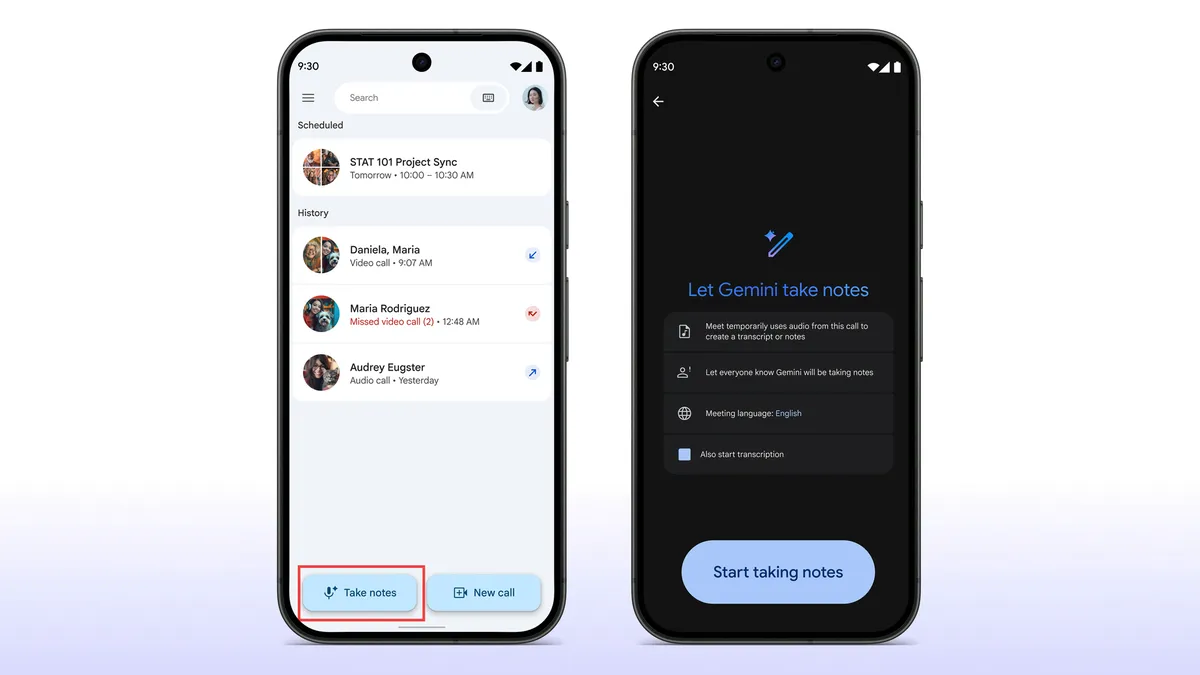
You can also use Gemini to capture notes during in-person discussions — and you don’t need to launch a full Google Meet call to do it.
How to try it: Open Google Meet, and tap “Take notes.” When you’re done, Gemini will compile a summary, list of action items, and complete transcript into a Google Doc, saved directly to your Google Drive and sent to you via email.
Need a video for a school project, new student club, or your dorm floor? Google Vids 6 7 makes it easy to create, edit, and collaborate on videos — and share them with your peers. You can generate music, add AI avatars, and more to bring your ideas to life.
How to try it: Open Google Vids, choose “create AI video,” and upload a picture of yourself. Then, try this prompt: “Create a high-energy welcome video for our [Club Name/Dorm Floor Name]. Use a warm, welcoming, and fun tone.”
Or turn it into a team effort. Invite your floormates, club members, or group project collaborators to work on the video with you in real time, giving them Editor access like you would on a Google Doc. Ask everyone to film a quick clip using the built-in record feature in Google Vids, and add it directly to your intro highlight reel.
One of the best ways to prep for exams is to quiz yourself on the material. With Gemini in Google Forms 8 , you can quickly create a variety of sample questions with graded answer keys, using content from the web or course materials from your Google Drive.
How to try it: Open Google Forms, click “Help me create,” and describe the quiz you want to make. Try this prompt: “Create a 10-question multiple-choice practice quiz to test my knowledge on Hammarabi’s code. Ensure correct answers are set up so I can grade myself after completing it.”
All of these features are available to eligible Google AI Pro and Ultra subscribers with limited access for Plus subscribers (AI Inbox and Vids only).
To help you get started, we’re offering student plans for one year at no cost.
Eligible college students in the U.S. can get one year of Google AI Pro for free (valued at $19.99 per month). 9 This offer unlocks free usage of all the Google Workspace AI features above and more, plus four-times higher usage limits in Gemini 10 , access to Gemini Spark, 5 TB of storage, and Google Health Premium.
For eligible college students in 140+ markets outside the U.S., we’re offering one year of Google AI Plus, free of charge. 11 This gives you access to Gemini in Vids, as well as two-times higher usage limits in Gemini 10 , 400 GB of storage, and more.
Claim your offer today.
Available on desktop in English in select countries for users on eligible Google AI or Workspace plans.
Available on desktop in English in select countries for users on eligible Google AI or Workspace plans.
Available on mobile and desktop in English in the U.S. for eligible users on eligible Google AI or Workspace plans.
These features are available on mobile and desktop in select languages and countries for users on eligible Google AI or Workspace plans. The in person feature is currently available on Android devices and rolling out to iOS and desktop for users.
AI features in Vids are available in English in select countries for users on eligible Google AI or Workspace plans.
At this time, Vids creation and editing is only available on desktop, with viewing available on both desktop and mobile devices.
Available on desktop in English in select countries for users on eligible Google AI or Workspace plans.
Eligible students in the U.S. only. Offer Terms apply. Redeem until December 31, 2026. Valid form of payment required at sign-up. Unless cancelled earlier, Google AI Pro will automatically charge $19.99/month after the trial ends. Cancel anytime.
In comparison to non-AI subscribers.
Eligible students in over 140 markets where Google AI Plus is available, except for in the U.S., Bolivia, Albania, Canada, Macau, Hong Kong, and Tunisia. Offer Terms apply. Redeem until December 31, 2026. Valid form of payment required at sign-up. Unless cancelled earlier, Google AI Plus will automatically charge $4.99/month or local currency equivalent after the trial ends. Cancel anytime.