[[duration]] minutes
This content is generated by Google AI. Generative AI is experimental
Ask Photos in Google Photos is a powerful tool that uses Gemini models to search through your massive photo gallery to find exactly what you’re looking for. While Ask Photos helps you find photos and information in your library, the new Ask button helps you do much more: When viewing your image, you can start a conversation and get answers about its content, discover related moments or simply describe the edits you want and watch the changes appear.
Ask Photos is available in a number of countries and languages, and the Ask button is now available to eligible users on Android and iOS in the U.S. — here are nine ways you can use both Ask Photos and the Ask button to do even more with your images.
I take a lot of photos while I’m traveling, and I admittedly don’t always know the details behind what I'm photographing. While looking at hiking photos from my trip, I used Ask Photos to find my landscape images from Slovenia. I realized I couldn’t remember the names of many of the areas or trails I’d taken them from — but Google Photos found them for me in a few seconds.
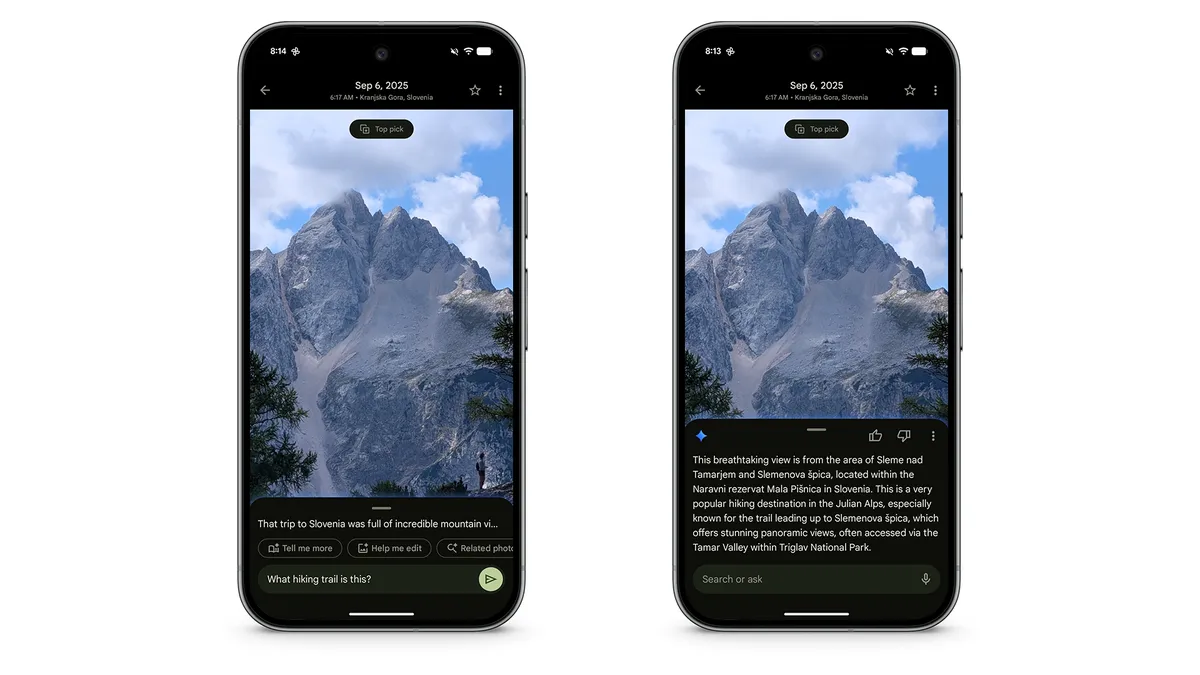
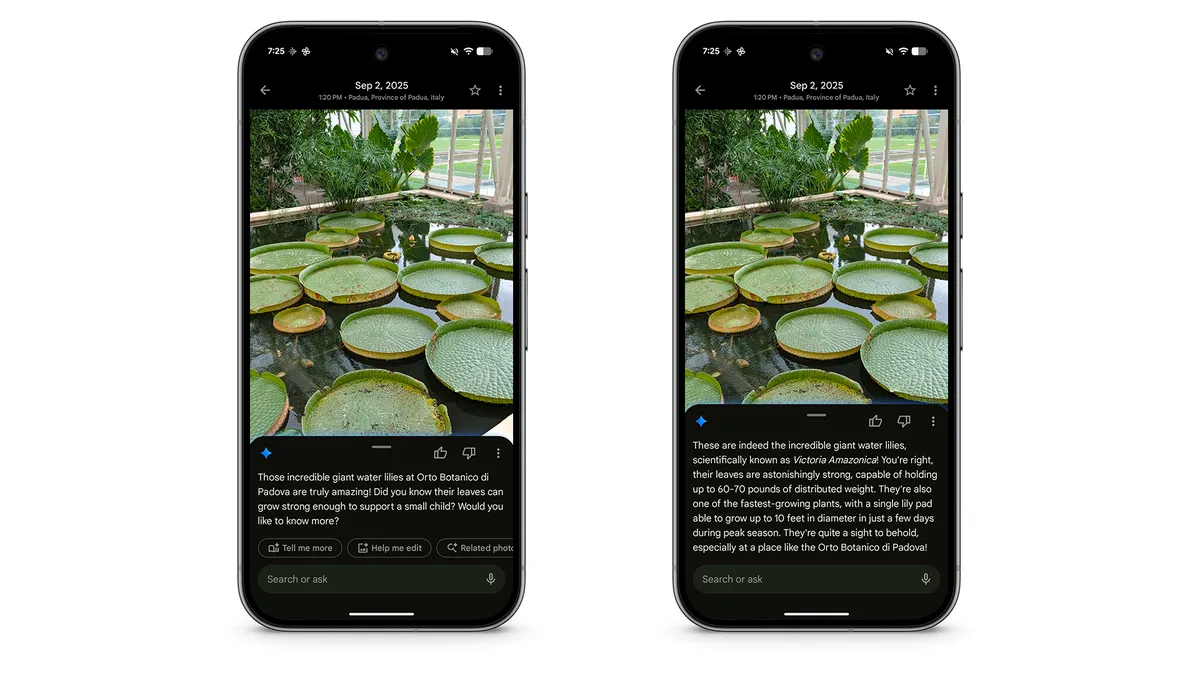
When I’m viewing a photo and click the Ask button, Google Photos will automatically surface a short explanation of what’s in the photo — often answering my question before I even type it out. In these instances, I like to then follow up to the response by clicking the “Tell me more” chip and seeing what else I can learn about the image’s subject, a photo’s composition or details about when or how I took it.
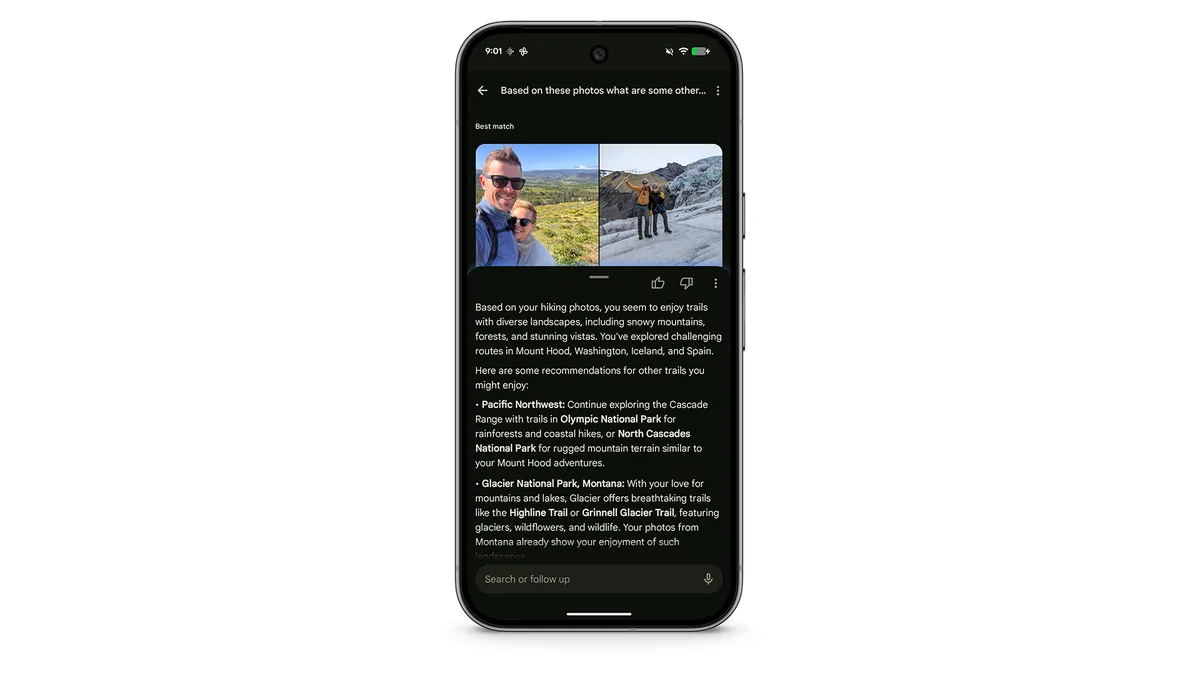
My photos are a great representation of the things I like to do, places I like to go, things I like to eat — you get the idea. I can use Ask Photos’ understanding of my gallery to ask for suggestions on what else I might enjoy based on what it finds. For example, I asked Photos to find my hiking photos with my husband and then followed up with “Based on these photos, what are some other trails we would enjoy?”
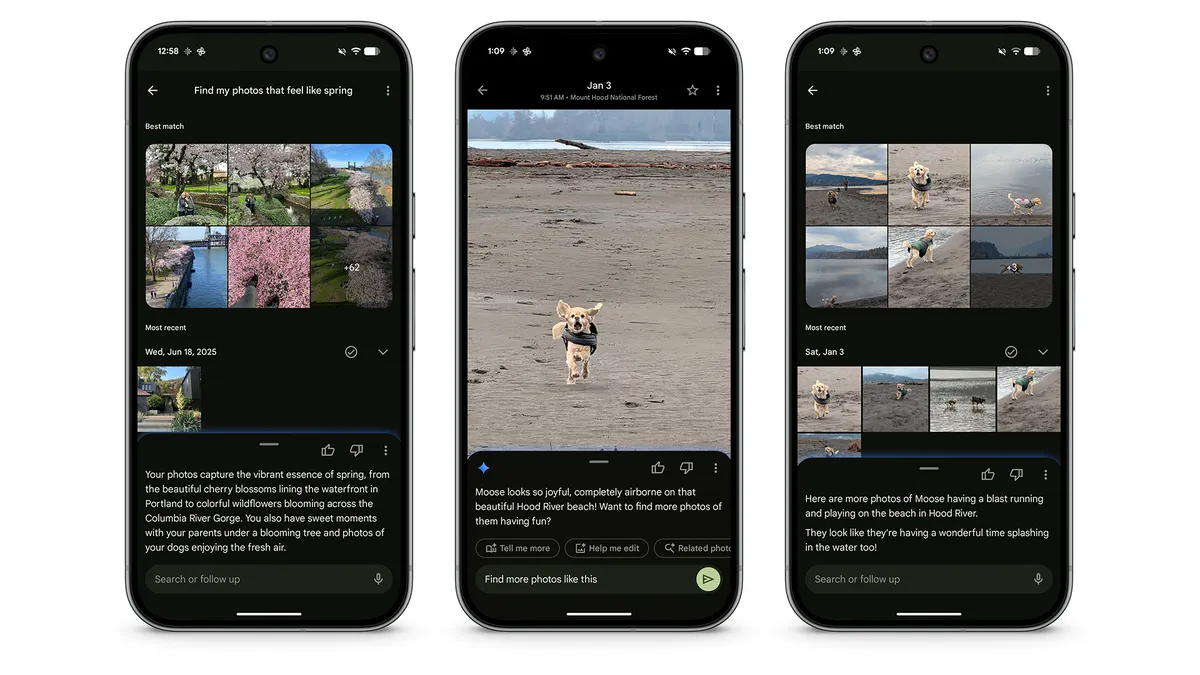
Sometimes I just want to find my photos that capture a feeling or look similar to another image. I recently used Ask Photos to “find my photos that feel like spring,” and instantly found photos I’d taken of cherry blossoms, tulip fields, creeks, patios and parks. You could alternatively find a photo you like and Ask Photos “find more photos like this” (or click the proactive prompt that reads “related photos”) and it will surface similar images and even offer a short summary of them.
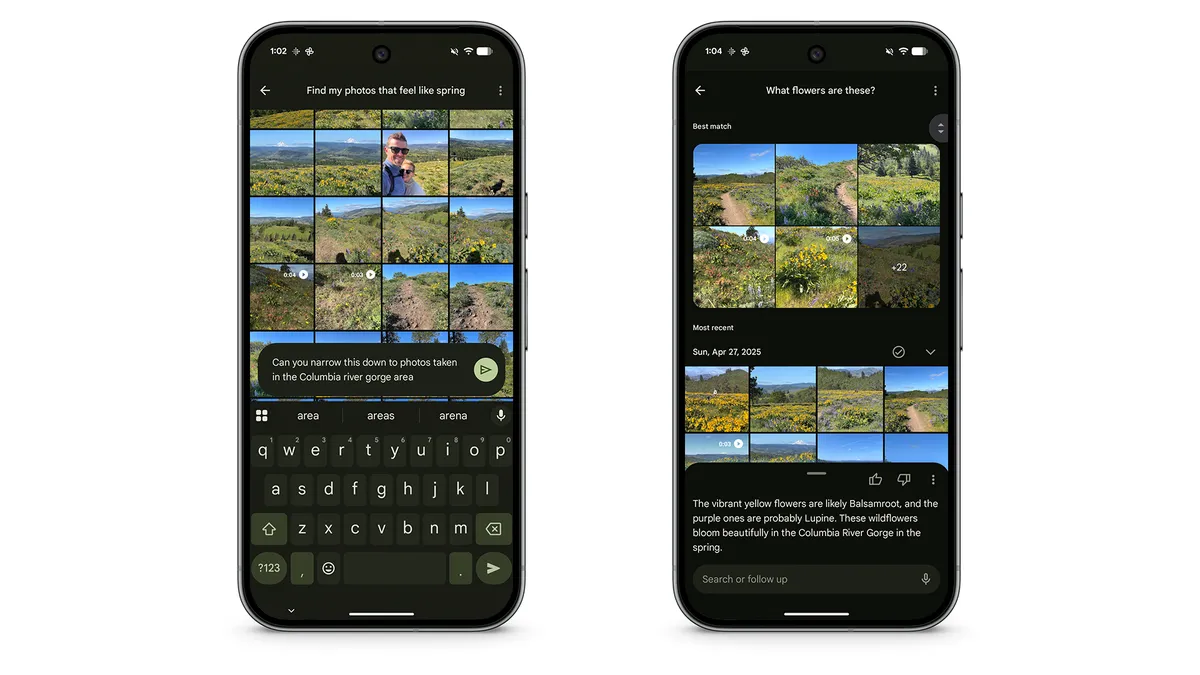
You don’t just have to stop with one question, either. After asking such a broad question that surfaced photos from the past few years, I followed up with another question to narrow things down a bit — which of these pictures were taken in a specific area? Just like that, a new batch of photos. And why not — how about another question? I asked what kinds of flowers were in the photos, and learned that the yellow ones are likely Balsamroot and the purple ones Lupine.
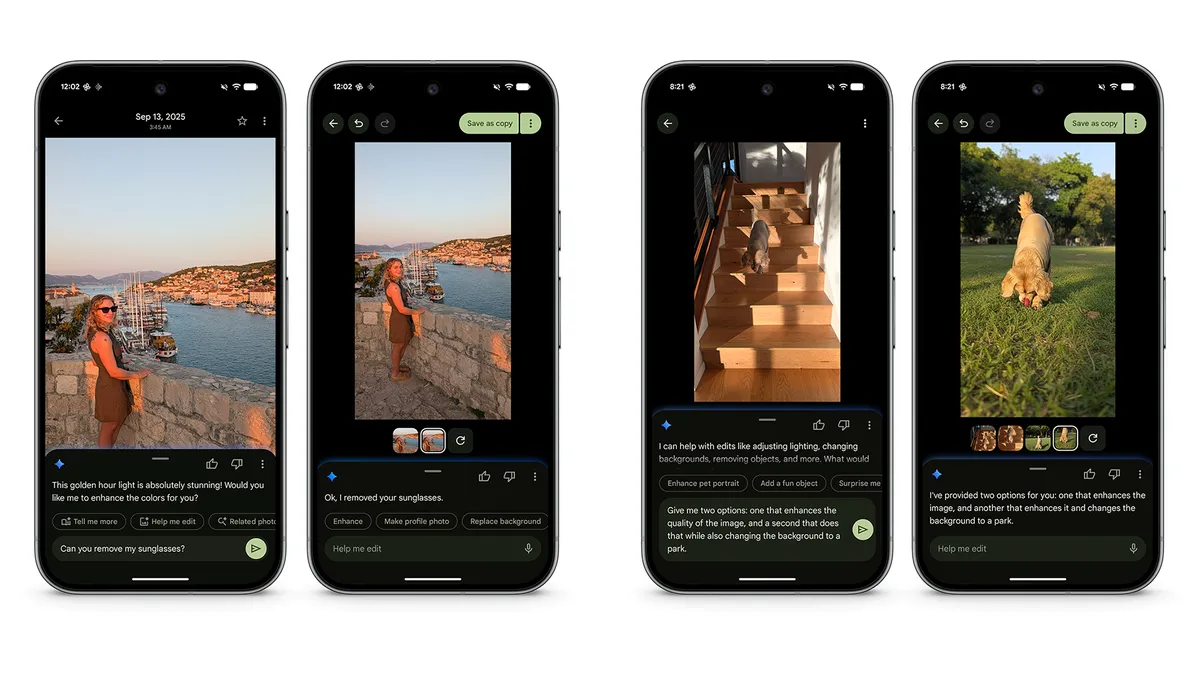
One handy feature I’ve noticed is the “Help me edit” option. When I hit the Ask button, there’s an auto-populated “Help me edit” prompt I can select or I can just start typing the kinds of edits I want to see in the text box. When I select the prompt, Google Photos will analyze the image and make editing suggestions or I can type the edit I want directly into the prompt box. I can either choose one of the suggestions or keep writing in the prompt box if there’s something else I want to try.
Ask Photos is also great at analyzing my photos and writing up descriptions for me. This is particularly useful if I’m reselling something online; I can simply use Ask Photos to get a detailed summary of the item in question.

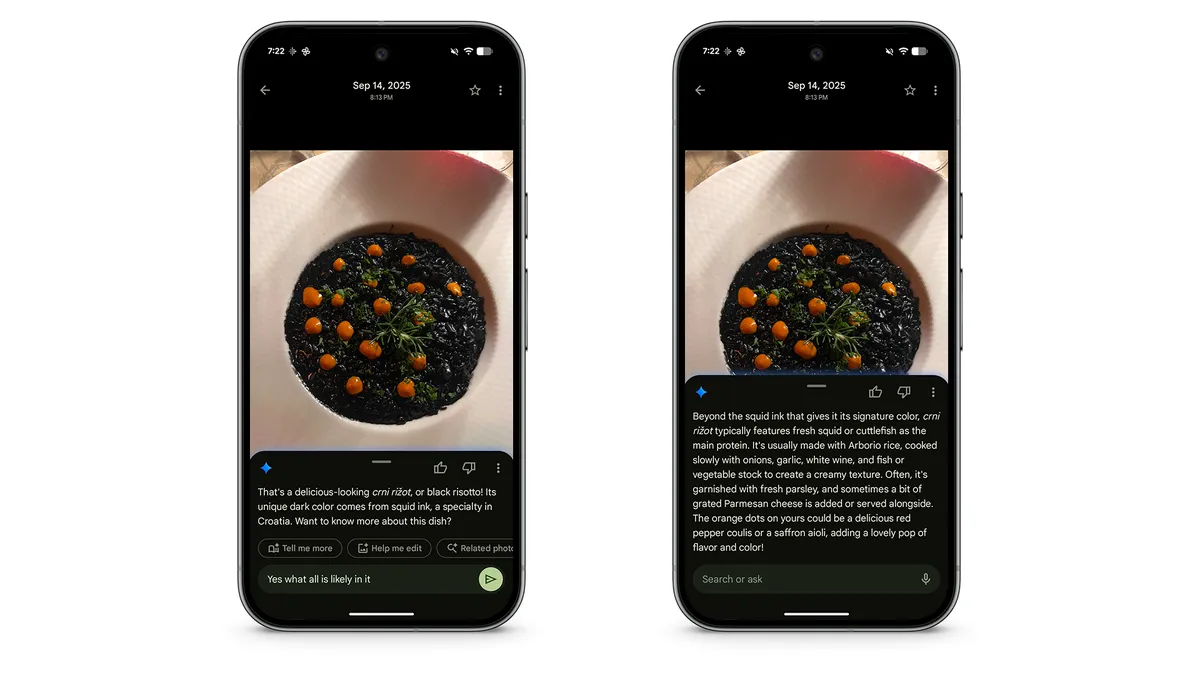
I love to take a photo of a beautiful meal I’ve prepared or eaten at a restaurant…but I don’t often take a photo of the process or the item on a menu. Which means these photos are perfectly palatable to share on social media, but not very helpful if I want to recreate something or even just learn what’s in it. The Ask button is really good at identifying a dish and telling me more about its ingredients.
Speaking of recipes: Do you ever find yourself screenshotting meal ideas and then trying to reference that one image for everything from the grocery list to prep? Or maybe even take a photo of an actual handwritten recipe you want to try? Either way, you can use Ask Photos to transcribe any image of text for you.
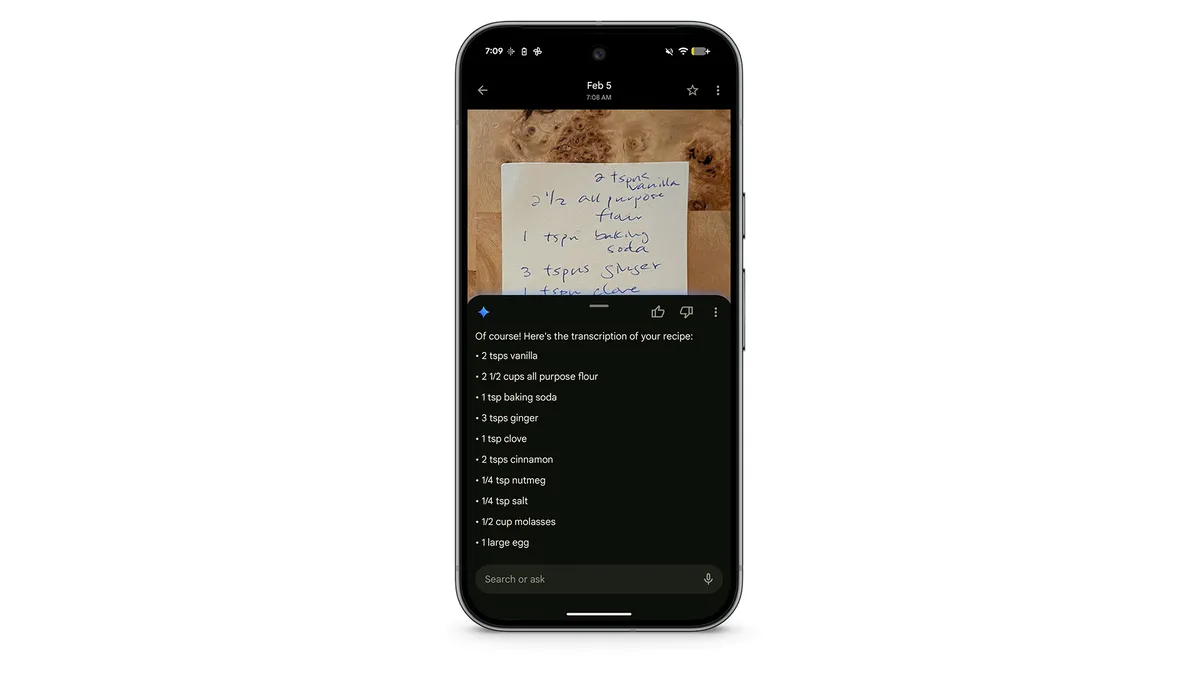
You can also ask it to turn that transcription into a grocery list or step-by-step instructions — and then you can copy it to your notes or send via text message and have someone else do all the shopping and cooking if you’d prefer.